RedSQL Data Sync
Generic Redis to SQL data synchronizer
RedSQL Data Sync
Generic Redis to SQL data synchronizer.
To flexibly configure the operation of RedSQL independent of the Redis format, a
series of transformation steps can be defined. Each step transforms the input messages into another series of output
messages that can be picked up by the next step or fed into the database.
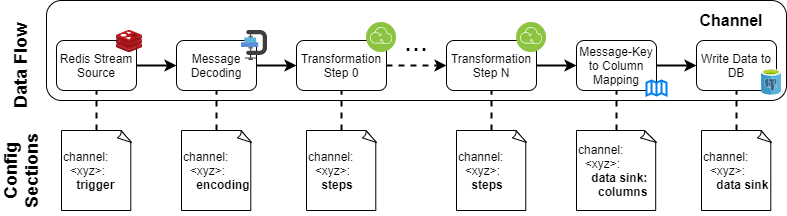
The overall data flow is illustrated in the following graphics. Note that some intermediate steps such as individual
transformation steps may be omitted, in case messages are already received in an adequate format.
Installation (User Setup)
Although RedSQL can also be installed via pip and accessed via the redsql commandline tool, it is recommended to use
the provided container images via (Docker, Podman, …). Pre-build images are hosted on the
GILTab container registry. Make
sure that your Docker or Podman instance is properly authenticated. The main configuration file is expected at
/etc/redsql/config.yml.
podman login --username $GITLAB_USER --password $GITLAB_DEPLOYMENT_TOKEN gitlab-intern.ait.ac.at:5010
podman run -v data/test/extensive-config.yml:/etc/redsql/config.yml \
    gitlab-intern.ait.ac.at:5010/ees/rdp/generic-components/redsql
The gitlab-intern.ait.ac.at:5010/ees/rdp/generic-components/redsql container defines the following tags:
latest: The latest release. Currently, the latest tag mirrors the state of the main branch.latest-dev: The latest development snapshot as given in the development branchv<major>.<minor>.<patch>: Versioned releases as defined by the corresponding git tags.
Installation (Development Setup)
The development packages can be found in the conda environment definition:
conda env create -f environment.yml
conda activate redsql
For development and testing, RedSQL requires a Redis and PostgreSQL instance best provided via containers. To configure the containers, an environment file can be used:
POSTGRES_DB=postgres
POSTGRES_USER=postgres
POSTGRES_HOST=localhost
POSTGRES_PASSWORD=<some-pwd>

REDSQL_REDIS_HOST=localhost
REDSQL_REDIS_PORT=6379
REDSQL_REDIS_DB=0
The containers can then be started with:
podman run --env-file=.env -p 5432:5432 -v redsql-timescale-dev:/var/lib/postgresql/data -it -d \
    docker.io/timescale/timescaledb:latest-pg14
podman run -p 6379:6379 -it -d docker.io/redis
To run the test suite, make sure that both the content root and the test directory are within the python path. The connection to the Redis and PostgreSQL instance is given via environment variables and default assignments:
set PYTHONPATH=.;.\test
set REDSQL_DB_URL=postgresql://postgres:<some-pwd>@localhost:5432/postgres

pytest test
Configuration
Basic Input-Output Mapping
The configuration is read from a YAML file passed on to the redsql executable. An exemplary configuration can be found
in the test data directory. The database connection and redis statements globally
define the connection parameters to the data sink and source, respectively. External environment variables can be
referenced by !env-template expressions. E.g.:
# The connection URL to the SQL data sink:
database connection: !env-template "postgresql://${POSTGRES_USER}:${POSTGRES_PASSWORD}@${POSTGRES_HOST}/${POSTGRES_DB}"
redis:
  host: !env-template "${REDSQL_REDIS_HOST}"  # The Redis hostname or IP address. Default is localhost
  port: !env-template "${REDSQL_REDIS_PORT}"  # The Redis port. Default is 6379
  db: !env-template "${REDSQL_REDIS_DB}"  # The Redis database ID. Default is 0
By the channels configuration key, a named list of synchronisation relations that read from a specific stream,
transform the messages and write it into the database is given. A minimal channel definition can be configured by a
trigger section defining the redis stream to fetch the messages from and a data sink section that defines the
destination table:
channels:  # The named list of synchronisation relations
  forecasts_weather:  # An arbitrary name that is mostly used for debugging and logging purposes
    trigger:  # Definitions on how to fetch data and trigger the channel execution
      stream id: "forecasts.weather"  # The ID of the Redis stream to fetch messages from
    data sink:
      table: "forecasts"  # The name of the database table to write the message content to
Without any further configuration, for each column, a message entry must be present. To map column names and message
keys that do not match, a columns clause can be appended to the data sink configuration. In case one column is not
listed in the columns section, a one-to-one mapping is assumed.
channels:
  forecasts_weather:
    trigger:
      stream id: "forecasts.weather"

    data sink:
      table: "forecasts"
      columns:
        # Defines the message keys for each column name. Per default, the same name will be assumed.
        # Format: <column name>: <message key>
        obs_time: "observation_time"
        fc_time: "forecast_time"
Message Encoding
Since Redis does not specify value encodings beyond strings, an encoding clause can be appended to the channel
definitions. The clause itself defines a mapping of message keys to the expected encoding. In addition, a _default
key can be specified defining the encoding, if no further configuration is given for a particular key.
channels:
  forecasts_weather:
    trigger:
      stream id: "forecasts.weather"

    encoding:  # Defines the message encoding
      _default: "JSON"  # The default encoding (JSON content)
      fc_time: "JSONDatetimeString"  # Expect a single JSON string with ISO datetime
      obs_time: "JSONListWithDatetimeStrings"  # Expect a JSON list with ISO datetime strings

    data sink:
      table: "forecasts"
Currently, the following encodings are supported:
KeepEncoding: Do not change the encoding given by RedisDatetimeString: An ISO-formatted Datetime string without enclosing it in quotation marks as required by JSONJSON: Directly decode the contents as JSONJSONListWithDatetimeStrings: Assume an JSON array with ISO-formatted datetime strings is given.JSONDatetimeString: Assume the JSON strings is an ISO-formatted datetime
Trim Redis Streams
To avoid excessive memory usage of Redis streams, RedSQL may issue periodic trim operations. Within the trigger
configuration, a trim length parameters can be set to enable trimming and cut the stream to the given value. In case
trimming should be avoided, the parameter can be set to None (default). Note that for performance reasons, it is
currently not checked before trimming whether all messages have been consumed. Hence, setting the maximum length too
small may result in data loss. Additionally, approximate trimming is enabled, that permits size overshoot to further
improve the performance. The following example limits the number of messages within the redis stream to about 200:
channels:
  forecasts_weather:
    trigger:
      stream id: "forecasts.weather"
      trim length: 200  # Redis stream trimming target
    data sink:
      table: "forecasts"
Transformation Steps
Transformation rules can be defined to change the message format of the incoming messages to a format understood by the
database. They are defined by a series of sequentially applied steps that transform the input message(s) to a series
of output messages. The individual steps are defined in the steps configuration clause that itself host a list of
individual step definitions:
channels:
  forecasts_weather:
    trigger:
      stream id: "forecasts.weather"

    steps:  # The sequence of steps to apply to each input message
      - type: "SplitByKey"  # The type of the individual step
        destination key: "value"  # step-specific configuration

    data sink:
      table: "forecasts"
Split the Message by Message Keys
The SplitByKey step generates a new message for each key in the input message. In addition, the original key is
renamed to the key name given in destination key. Optionally, the original key string can be stored in a new key
specified by source output key. Keys from the input message that should be copied to all output messages can be
specified by the always include parameter:
channels:
  forecasts_weather:
    trigger:
      stream id: "forecasts.weather"

    steps:
      - type: "SplitByKey"
        always include: ["fc_time", "obs_time"]  # Copy fc_time and obs_time to each output message
        destination key: "value"  # Store the value of each key to a key named "value"
        source output key: "observation_type"  # Store the original key name to a new key named "observation_type"

    data sink:
      table: "forecasts"
The configuration above transforms the single input message
[
  {
    "fc_time": "2022-08-10T10:00:00Z",
    "obs_time": "2022-08-10T11:00:00Z",
    "air_temperature_2m": 22.1,
    "wind_speed_10m": 3.6
  }
]
into the following output messages:
[
  {
    "fc_time": "2022-08-10T10:00:00Z",
    "obs_time": "2022-08-10T11:00:00Z",
    "value": 22.1,
    "observation_type": "air_temperature_2m"
  },
  {
    "fc_time": "2022-08-10T10:00:00Z",
    "obs_time": "2022-08-10T11:00:00Z",
    "value": 3.6,
    "observation_type": "wind_speed_10m"
  }
]
Split Arrays into Multiple Messages
The UnpackArrayValues step can be applied to split equally sized arrays into multiple messages, one per index. The
names of the message keys specifying the unpacked arrays will not be changed. The message keys of the arrays can be
specified by the unpack keys configuration:
channels:
  forecasts_weather:
    trigger:
      stream id: "forecasts.weather"

    steps:
      - type: "UnpackArrayValues"  # Move each array element into a dedicated message
        unpack keys: ["obs_time", "value"]  # The names of the arrays to unpack

    data sink:
      table: "forecasts"
For instance, the following input message
[
  {
    "fc_time": "2022-08-10T10:00:00Z",
    "obs_time": ["2022-08-10T11:00:00Z", "2022-08-10T12:00:00Z"],
    "value": [22.1, 23.2]
  }
]
is transformed into two output messages:
[
  {
    "fc_time": "2022-08-10T10:00:00Z",
    "obs_time": "2022-08-10T11:00:00Z",
    "value": 22.1
  },
  {
    "fc_time": "2022-08-10T10:00:00Z",
    "obs_time": "2022-08-10T12:00:00Z",
    "value": 23.2
  }
]
Query External Data
The step CachedSQLQuery can be used to extend each message by meta-information queried from the main database. The
query configuration specifies the SQL query to run for each message. Values from the message can be referenced by SQL
parameters, e.g. :key_name. The key names that will be appended to each message are determined by the column names of
the returned table. Per default, it is assumed that only a single row is returned that directly defines the message
keys. In case the single value configuration parameter is set to False, multiple rows can be returned as column
arrays.
To avoid excessive queries, a caching mechanism is implemented that stores previous results. The output of each query
needs to be determined by a list of cache keys. Each cache key specifies the name of a message key. In case a query
was already executed with the same cache key assignment, the result is immediately returned without executing the query
again. For instance, the following configuration extends the message by a dp_id parameter that is generated from the
values of a station, data_provider, and observation_type field in the input message:
channels:
  forecasts_weather:
    trigger:
      stream id: "forecasts.weather"

    steps:
      - type: "CachedSQLQuery"  # Execute an SQL query and extend the message by its results
        # The SQL query to execute:
        query: "
            SELECT id AS dp_id FROM data_points
              WHERE name=:observation_type AND data_provider=:data_provider AND location_code=:station
          "
        single value: True  # Expect a single value per column only, e.g.  {"dp_id": 42}
        cache keys: ["station", "data_provider", "observation_type"]  # The listed message keys determine the result

    data sink:
      table: "forecasts"
In case some query parameters need to be passed on to the database as JSON objects, type conversion cannot be done
automatically. (Just imagine a string object which could either be encoded as ordinary string or JSON object.) To
circumvent this problem, RedSQL supports parameter tying for parameters that are not automatically parsed. The
parameter types configuration enables to specify the type for each parameter in the query. For parameters that are not
listed, the default typing behaviour will apply.
channels:
  forecasts_weather:
    trigger:
      stream id: "forecasts.weather"

    steps:
      - type: "CachedSQLQuery"
        # Note that :meta_data will be expected as JSONB
        query: "
            SELECT get_or_create_data_point_id(
                :observation_type, :device_name, :station, :data_provider, NULL, :meta_data
              ) AS dp_id;
          "
        parameter types:
          meta_data: JSONB  # Only the parameters that cannot be converted automatically need to be specified.
        single value: True
        cache keys: ["observation_type", "device_name", "station", "data_provider"]

    data sink:
      table: "forecasts"
Join Message Values to a Complex Structure
Some queries require complex (JSON) data structures. The processing step PackMessageValues allows to create such dict
and list-based structures from simpler fields by copying some message values into a destination structure. The
configuration parameter destination therefore lists the additional message keys and the structure of the values. The
structure itself can contain any YAML elements such as (nested) lists, dicts, numerical literals and string literals.
Other message values can be referenced via dedicated reference strings "%<message-key>", where <message-key>
corresponds the key within the input message. Any such literal will be replaced by the corresponding values from the
input message. To enable string literals that start with a % character, the escape-sequence %% may be used. Note
that % characters after the very first position do not need to be escaped.
The following configuration example appends one element, meta_data to the message.
channels:
  forecasts_weather:
    trigger:
      stream id: "forecasts.weather"

    steps:
      - type: "PackMessageValues"
        destination:  # Define the target data structures
          # The first level defines the message keys. Only string keys are allowed here. The element will be resolved
          # to the following dict structure:
          meta_data:
            data_owner: "%owner"  # Copy the content of the "owner" element here
            data_path: ["%data_source", "RedSQL"]  # The first element of the list will be replaced by "data_source"

    data sink:
      table: "forecasts"
Type and Content Lookup
There are some use-cases where data of a single stream should be inserted into different tables or different columns. For instance, in case messages hold values of different data type, (e.g., float, boolean, objects), the destination needs to be dynamically adjusted. For that use-case, a dynamic type resolution mechanism is available that looks up the destination type based on field values and their data type. This information is stored in a message field and will be passed on to adjacent steps that may choose the correct table or column based on the type information.
For type lookups, a dedicated step called ResolveDataType is created. Per default, this step looks up the type of
the value message field, translates that to supported database types (double, bigint, boolean, jsonb) and stores the
result in a message field called data_type. However, for deep customization, the exact behaviour can be adjusted
using the following configuration variables:
lookup_table: The actual mapping of source information (type and field values) to the output field value. The mapping has to be given as a dictionary where the keys correspond to source values and the values will be pushed to the selectedoutput_key. In case multiple sources are given, the keys must be tuples with exactly one element per source. A default element"_default"may be present that will be taken if no other entry matches.source: A list of source definitions. Right now one of the following is supportedtype_of: The python type of the value of the corresponding message field. For builtin types, no package is taken. All other types will be prefixed by the package.value_of: Directly takes the value of the given message field and translates it via the lookup table.
output_key: The key to write the resolved type in (defaults todata_type).default: A flag that indicates the default behaviour. In caseomitis given, the output variable will not be (over-) written and the step returns normally, if no matching entry in the lookup table is found. In caselookup(default) is given, a default clause must be present or an error will be raised.
The following configuration example sets the type message key, based on the data type of the value key.
channels:
  forecasts_weather:
    trigger:
      stream id: "forecasts.weather"

    steps:
      - type: "ResolveDataType"
        source:
          - type_of: "value"  # Use the type of the value function. This may also be shortened by 'source: "value"'
        lookup_table:         # Define the type lookup mechanism
          float: "float-value"
          bool: "bool-value"
        output_key: "type"    # Define the destination of the resolved types (i.e. "float-value" and "bool-value"

    data sink:
      table: "forecasts"
Multiple sources may be combined as follows:
channels:
  forecasts_weather:
    trigger:
      stream id: "forecasts.weather"

    steps:
      - type: "ResolveDataType"
        source:
          - value_of: "name"
          - value_of: "device_id"
        lookup_table:
          ("air_temperature", "device_0"): "outside-air"  # One tuple element per source
          ("air_temperature", "device_1"): "inside-air"
          "_default": "auxiliary-measurements"            # Default value in case none of the above matches

    data sink:
      table: "forecasts"
Dynamic Table Configurations
The data sink allows to dynamically select the table and column mapping based on the contents of a message field. The
message key that selects the destination is configured by the table_key configuration. Instead of a single
configuration, multiple configurations can be configured via the tables configuration followed by a dictionary of
single table configurations. In order to reduce the risk of malicious behaviour by tampered messages, only a statically
configured set of table configurations is supported. For each table configuration in the tables dictionary, a unique
key has to be set. That key is then matched against the content of the table_key message field.
In the following configuration, two message types are configured, number and flag.
channels:
  forecasts_weather:
    trigger:
      stream id: "forecasts.weather"

    data sink:                # Data sink with dynamically selected configurations
      table_key: "data_type"  # The message key whose value determines the destination
      tables:                 # The list of supported table configurations
        number:               # The identifier of the configuration ("number")
          table: "numeric_forecasts"
          columns:
            value: "forecast_value"
        flag:                 # The identifier of the configuration ("float")
          table: "boolean_forecasts"
          columns:
            value: "forecast_value"
The first of the following messages would thereby be added to the boolean_forecasts table while the second one would
be inserted in numeric_forecasts.
{
  "data_type": "flag",
  "name": "thunderstorm",
  "forecast_value": true
}
{
  "data_type": "number",
  "name": "air_temperature",
  "forecast_value": 32
}
To handle unknown or default types without raising an error, the generic _default name of a table configuration is
supported that matches all table_key assignments that are not otherwise specified.
Prometheus Metrics
RedSQL can export a series of performance metrics. Per default, port 8000 and the endpoint “/” is configured. However, the following configuration can be used to adjust the behaviour.
prometheus client:
  port: 1414  # The port to grab prometheus metrics
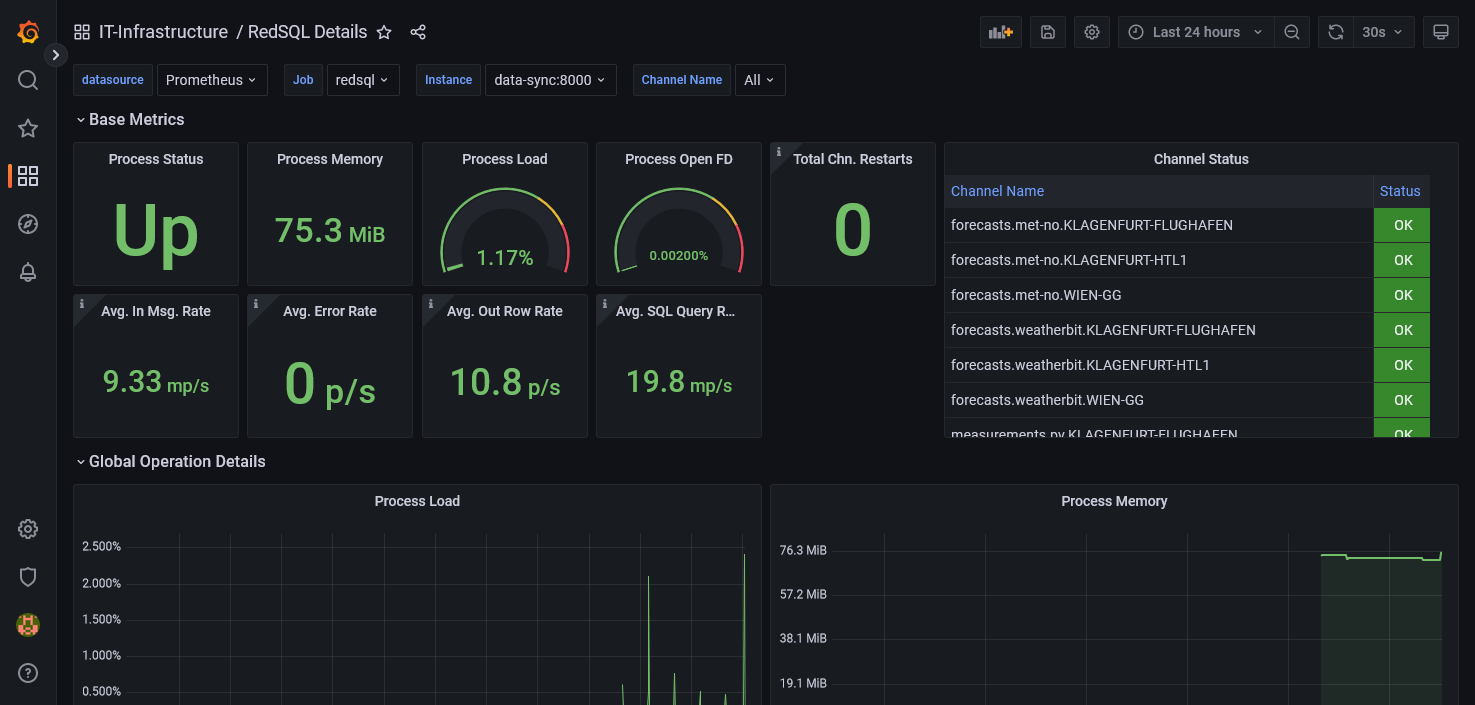
Note that setting the global configuration prometheus client: None will disable the metric export. An exemplary Grafana dashboard is available in the docs folder: